
Knowledgebase & FAQ
How to delete a RecFind database
Summary
When deleting a RecFind database there are two separate processes,
- the user deletes the database via the application, this removes all internal references to the database
- the Microsoft SQL Server or Oracle DBA delete the tables from the database
For a detailed explanation of these two functions, please refer to the below information.
Detailed Information
Deleting the Database from RecFind
- From within RecFind, load the Database
Maintenance module from the Admin Tab.
- Highlight the database you wish to delete,
and select ‘Delete’.
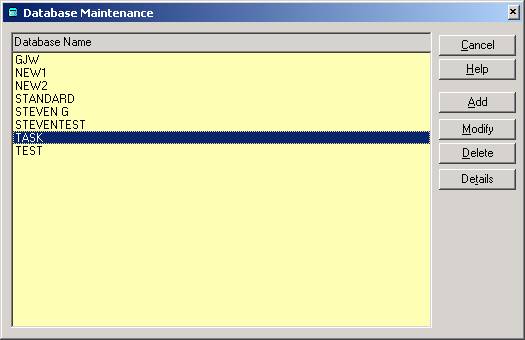
- You will be prompted with the database
details window. Select ‘OK’ to confirm that you wish to delete the
database.
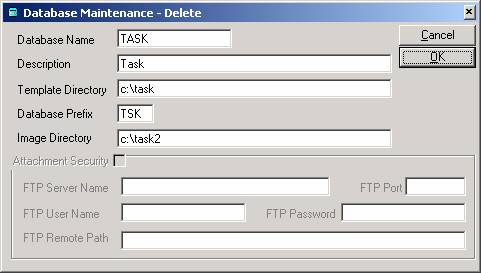
- The next message you will see, is the one
below. This indicates that the database will be deleted from within
RecFind only, however the SQL tables will not be deleted.

- Select ‘OK’ again.
Deleting the Database from Microsoft SQL Server
(click here for
Oracle)
Once you have deleted the the database from within RecFind, you must delete the actual SQL tables via Enterprise Manager.
- Go into Enterprise Manager on the SQL
Server.
- Browse to the RecFind database and select
the 'Tables' folder
- Highlight ALL tables which begin with the
database prefix you will be deleting. i.e. In the above example, we
are deleting the TASK database that has a prefix of TSK. We
therefore highlight all tables which commence with 'tsk_'.
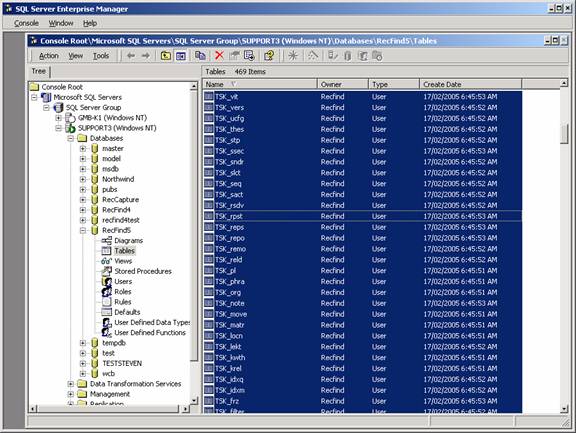
- Once highlighted, right click on any of
the tables, and select ‘Delete’. You will be prompted with the
following screen.
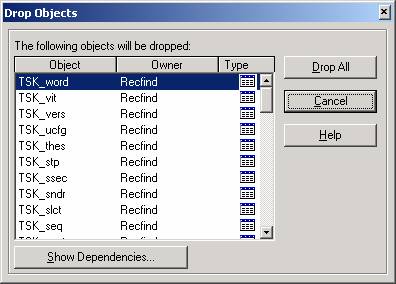
- Select ‘Drop All’. Your SQL Server may take a little moment to delete ALL of the required tables. Once this has been completed, you have successfully deleted the RecFind database from RecFind, along with its related SQL tables.
Deleting the Database from Oracle
Once you have deleted the the database from within RecFind, you must delete the actual Oracle tables via DBA Studio/Enterprise Console or another tool.
- Go into Oracle DBA Studio on the Oracle server.
- Browse to the RecFind database and select
the 'Tables' folder
- Highlight ALL tables which begin with the
database prefix you will be deleting. i.e. In the above example, we
are deleting the TASK database that has a prefix of TSK. We
therefore highlight all tables which commence with 'tsk_'.
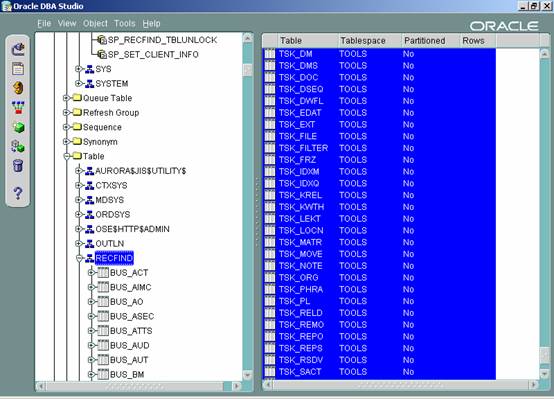
- Once highlighted, right click on any of
the tables, and select ‘Delete’. You will be prompted with the
following screen.
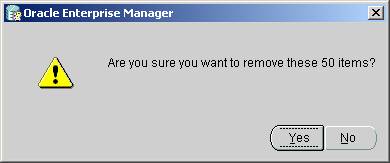
- Select 'Yes'. Your Oracle server may take a little moment to delete ALL of the required tables. Once this has been completed, you have successfully deleted the RecFind database from RecFind, along with its related Oracle tables.